
Overview
1) The PLAY screen
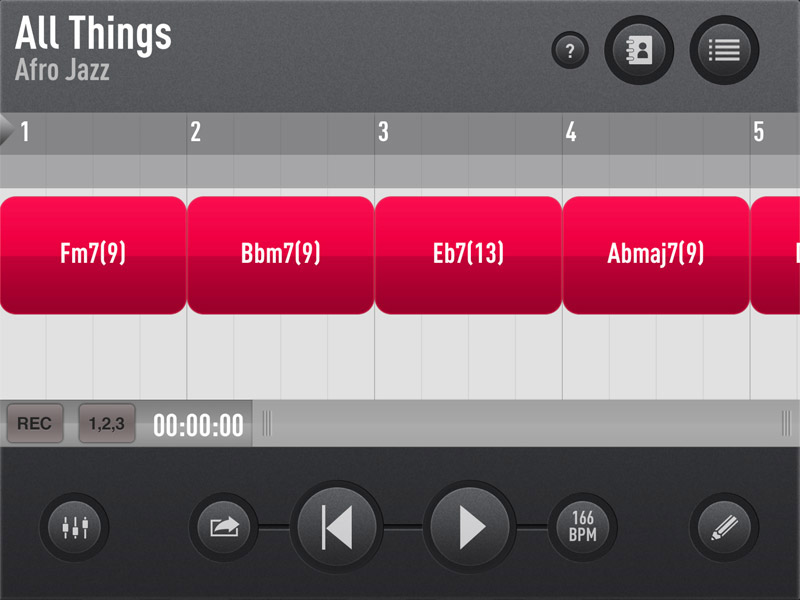
Play screen: Jazz Vol.1
The Play screen is the main default screen in SessionBand. When you create a track in SessionBand it appears as a series of coloured chord ‘blocks’ on a timeline made up of bars in the centre of the Play screen. These chord blocks represent the chords that the instruments in your track (i.e. the band) are playing at the moment the playhead moves over them – left to right.
In the Play screen you can play, pause, rewind and record the tracks you create.
You can also change the tempo (speed) of your track, add a count-in before your track starts, name different sections of your track and add loop markers to repeat (loop) a specific section.
From the Play screen you can also access all the other SessionBand screens.
2) The EDIT screen
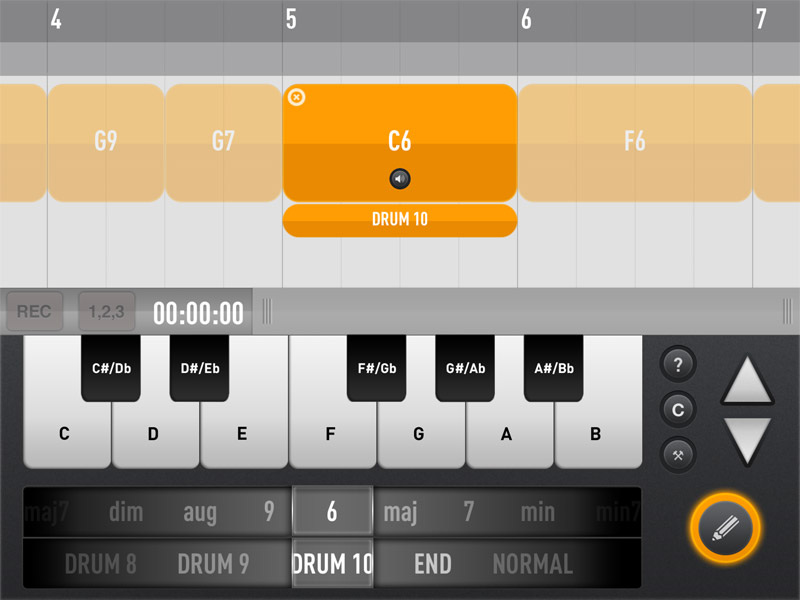
Edit screen: SessionBand Ukulele Band Vol.1
In the Edit screen you can add, change, audition and delete chord blocks and change the length of chord blocks in your track. You can add alternative drum patterns and drum fills from here, as well as inserting ‘END’ (sustained) chords at the end of your track for instance.
From the Edit screen there’s also a shortcut method to build up your track very quickly by copy and pasting sections using the Track Builder function. In the Edit screen you can also instantly transpose your entire track or adapt the chordal information of your track especially for Bb and Eb instrumentalists.
You can also add a crash cymbal at specific points in your track from the Edit screen (this function is only available in the newer SessionBand apps: Soul Jazz Funk 1, 2 & 3, Jazz Fusion and Jazz Vol.4).
3) The STYLE MENU screen

Style Menu screen: SessionBand Rock Vol.1
This is where you choose a musical style for your track and begin a totally new track from scratch. You can also use the Style Menu to change the musical style of a track that you have already created in another style. There is also a description of each musical style and a selection of demo tracks which you can play and edit as you wish.
On the newer SessionBand apps (Soul Jazz Funk 1, 2 & 3, Jazz Fusion and Jazz Vol.4) you will find audio preview clips for all of the alternative drum grooves and drum fills for each style.
4) The MIXER screen

Mixer screen: SessionBand Country Vol.1
This is where you can mix the relative volumes of the instruments in your track once you’ve created it. You can do this either using the automation function – which remembers all the fader/volume changes you make – or you can mix your track ‘live’ whilst recording it. You can also ‘mute’ or ‘solo’ specific instruments from the Mixer screen plus activate or deactivate the metronome function.
On the newer SessionBand apps (Soul Jazz Funk 1, 2 & 3, Jazz Fusion and Jazz Vol.4) you can also add effects (FX) to your track from the Mixer screen.
5) The ACTION MENU

SessionBand Action Menu button sequence
This is where you go to save, open and delete tracks you have created in SessionBand and also share and export the tracks you have made in a variety of different ways.
Use the Action Menu to do any of the following:
- to access online help;
- access the SessionBand app website;
- to go to the SessionBand loop pack sales website (for use with a Mac/PC DAW program);
- to find out about new app releases;
- to contact SessionBand support;
- to rate this SessionBand app;
- to join the SessionBand club; and
- to get information on the musicians and the support team involved with the making of this app as well as legal information.
On the newer SessionBand apps (Soul Jazz Funk 1,2 & 3, Jazz Fusion and Jazz Vol.4) you can also call up a PDF chord sheet of any saved track via Action Menu > Open