
The Action Menu

Specific functions accessible via Action Menu
Creating a new track from scratch from the Action Menu
To create a brand new track in SessionBand, tap the Action Menu button (from the Play screen) and select ‘New’.
Tip: You can also create a brand new track from the Style Menu by choosing a style an then tapping ‘Create New’.
Saving a track you have created
To save your track at any time, tap the Action Menu button (from the Play screen) and select ‘Save’. You will asked to give your track a ‘Track Author’ and a ‘Track Title’. Enter these as text and press the ‘Save’ button.

Opening a track you have saved
To open a saved track, first tap the Action Menu button (from the Play screen). Select ‘Open’ and you will see an alphabetical list of your saved SessionBand tracks. Select a track to open but make sure you have saved any changes to the track you were previously working on.
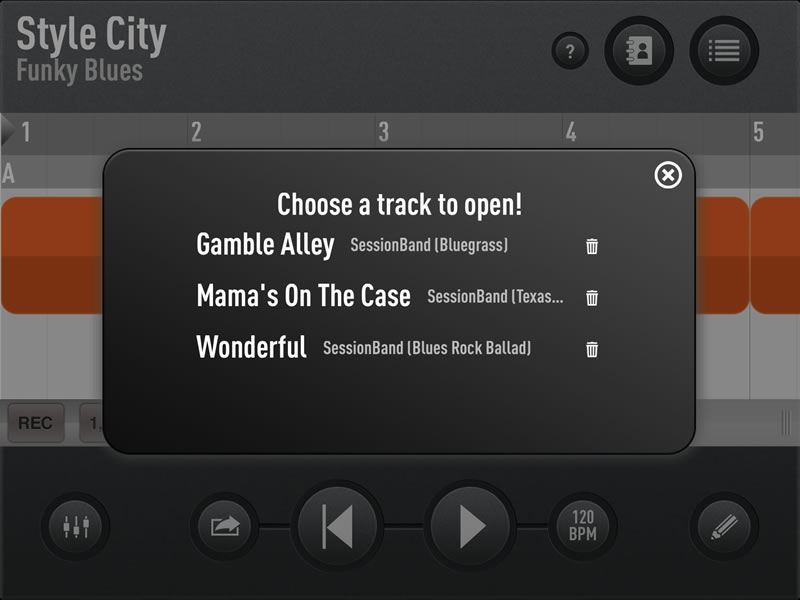
Deleting a track you have saved
To delete a saved track, first tap the Action Menu button (from the Play screen). Select ‘Open’ and you will see an alphabetical list of your SessionBand tracks. Tap the trash icon and confirm that you want to delete this saved track.
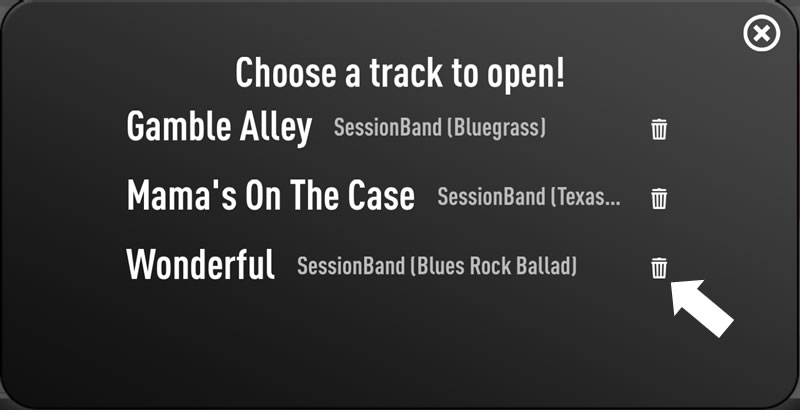
Accessing a PDF Chord Sheet for a track you have saved
This function is only available in the newer SessionBand apps: Soul Jazz Funk 1, 2 & 3, Jazz Fusion and Jazz Vol.4
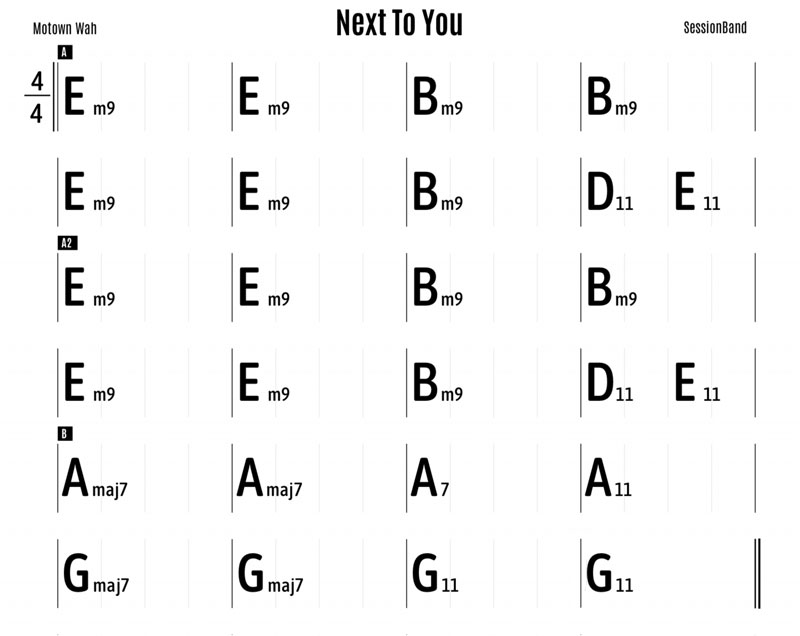
To instantly access a PDF Chord Sheet for a saved track first tap the Action Menu button (from the Play screen). Select ‘Open’ and you will see an alphabetical list of your saved SessionBand tracks.
Tap the PDF icon (next to the trash can) to retrieve a PDF Chord Sheet.
Save/print/share as appropriate.

Tip: If you want to produce PDF’s Chord Sheets for saved tracks adjusted for Bb and Eb instrumentalists, save the same track multiple times. First in C, then Bb and Eb as appropriate. Refer to Adapting the chord descriptions for Bb or Eb transposition instruments (e.g. Clarinet, Sax) in the Edit screen help section.
Sharing and exporting your recordings and saved tracks
To share or export a recording or saved track, first tap the Action Menu button (from the Play screen). Select ‘Share/Export’ and you will see two tabs: Recordings on the left and Saved Tracks on the right. Both tabs list your recordings and saved tracks alphabetically.

Recordings
The Recordings tab lists the audio recordings you have created using the ‘REC’ button (on the Play Screen) and saved in the app. You can listen to each recording using the speaker preview button alongside each track. Unwanted recordings can be deleted by tapping the trash icon.
These audio files exist as standard .wav (WAVE) format files. To export tap on the title of the recording you want to export.
You will then see a screen ‘How do you want to share/export?’ – with 2 options: Email and Other.

Select Email if you would like your email app to open with the recording added as an attachment. The attached audio file will me in .m4a file format suitable for sending by email.
Select Other to see the standard iOS File Export dialog screen which will allow you to copy the .wav format file to other apps. Or tap the ‘Save to Files‘ button to save your file locally in a folder on your device or upload to your iCloud Drive.

Saved Tracks
The Saved Tracks tab lists all the tracks that you have created and saved in the app – but not yet recorded.

Tip: SessionBand Track Files are small text files that can be easily shared between your iOS devices or with other SessionBand users. They have the file extension .sbx (where ‘x‘ depends on the actual SessionBand app).
It is then very easy for the recipient to import your .sbx file into their copy of the same SessionBand app and listen to and edit your track (you cannot import a track file from one SessionBand app into a different SessionBand app).
For a list of all the SessionBand track file extensions, click on the panel below:
SessionBand Track Filename Extensions
.sbjr SessionBand Soul Jazz Funk 3
.sbj4 SessionBand Jazz Vol.4
.sbtc SessionBand Jazz Fusion – Tom Cawley edition
.sbkw SessionBand Soul Jazz Funk 2 – Kirk Whalum edition
.sbcs SessionBand Soul Jazz Funk 1 – Chris Standring edition
.sbf SessionBand Original
.sbj SessionBand Jazz Vol.1
.sbj2 SessionBand Jazz Vol.2
.sbj3 SessionBand Jazz Vol.3
.sbp SessionBand Piano Vol.1
.sba SessionBand Acoustic Guitar Vol.1
.sba2 SessionBand Acoustic Guitar Vol.2
.sbr SessionBand Rock Vol.1
.sbb SessionBand Blues Vol.1
.sbe SessionBand EDM Vol.1
.sbc SessionBand Country Vol.1
.sbd SessionBand Drums Vol.1
.sbu SessionBand Ukulele Band Vol.1
.sbh SessionBand Deep House Vol.1
To export a saved track tap on the title of the track you want to export. You will then see a screen ‘How do you want to share/export?’ – with 3 options: Export Audio, Export SB File and Email.

Export Audio
This option will take your saved track file and create an audio file that you can then export.
If you tap Export Audio you will then have the option of recording the audio including the mixer automation settings (if you set these when you originally saved your track file) or recording the audio without.

Your track will then be recorded in real-time and when complete you will see the standard iOS File Export dialog screen which will allow you to copy the .wav format file to other apps. Or tap the ‘Save to Files‘ button to save your file locally in a folder on your device or upload to your iCloud Drive.

Export SB File
Tap the Export SB File button to save the SessionBand track file (.sbx format). You will then see the standard iOS File Export dialog screen (see above) which will allow you to save your file locally in a folder on your device or upload to your iCloud Drive.
Email
First select which attachments you want to add to the email: Audio Only, SB File or Both – then tap Email:
Audio Only will record your track in real-time (asking you first if you would like to add mixer automation or not) and then open your email app and add it as an .m4a audio file attachment suitable for emailing.
SB File will open your email app and add the Sessionband track file (.sbx format) as an attachment.
Both will record your track in real-time (asking you first if you would like to add mixer automation or not) and then open your email app and add it as an .m4a audio file attachment suitable for emailing and also add the SessionBand track file (.sbx format) as another attachment.
Tip: All recordings made and saved in SessionBand are retrievable as .WAV files through Apple’s iTunes File Sharing by simply connecting your device up to your iTunes account on a Mac or PC.
You can also use iTunes File Sharing to backup all your recordings and track files to a computer for safe keeping, just in case you need to reinstall an app or need to copy your files over to a new iPhone/iPad. File Sharing is also useful for loading up a particular set of tracks for a gig, etc.
For more information, see Apple’s guide here: https://support.apple.com/en-gb/HT201301
Options on the More panel…

1. Accessing online help
To access online help (these webpages) from within the app, first tap the Action Menu button (from the Play screen) and select ‘More’. Now tap ‘Online Help’.
2. Accessing the SessionBand website from the app
To access the SessionBand website, first tap the Action Menu button (from the Play screen) and select ‘More’. Now tap ‘Website’.
3. Contacting SessionBand support via email from the app
To send an email directly to SessionBand support via the app, first tap the Action Menu button (from the Play screen) and select ‘More’. Now tap ‘Contact Us’.
4. Loops
To browse and buy the content of each of the SessionBand app range as standalone high-quality, chord-based Loop Packs, tap the ‘Loops’ button. SessionBand Loop Packs come in a format ready to instantly download and import into GarageBand, Logic, Pro Tools, Ableton or your favourite DAW.
5. Accessing information on new releases
To access information on new SessionBand releases, first tap the Action Menu button (from the Play screen) and select ‘More’. Now tap ‘New Releases’.
6. Rating this app
To rate this SessionBand app in the Apple App Store, first tap the Action Menu button (from the Play screen) and select ‘More’. Now tap ‘Rate’. You will be directed to the appropriate page within the store.
7. Join
Tap this button to join the SessionBand club for free and get 70% off the complete range of SessionBand Loop Packs – high-quality loop content ready to download and import into GarageBand, Logic, Pro Tools, Ableton or your favourite DAW. Other benefits include prior notification of discounts on SessionBand apps and advance notice of new releases. Join free today
8. About the app
Legal information about the use of this app
All SessionBand app content is licensed to you entirely copyright free, so you can freely publish your own compositions without restriction. There are nonetheless, various legal notices about SessionBand content which can be found here. First tap the Action Menu button (from the Play screen) and select ‘More’. Now tap ‘About’.
Accessing information about the people who contributed to the making of this app
To access information about all those who contributed to the making of this app, please see the ‘Credits’ section of the ‘About’ page. First tap the Action Menu button (from the Play screen) and select ‘More’. Now tap ‘About’ and scroll down to ‘Credits’.